
Straighten a panorama
- In the editor, go to the crooked panorama and open the Panorama tab on the right.
- Open Advanced & Media. Horizon Correction has two sliders (1):
- RollTilt left or right. Use it when the horizon slopes from one side to the other.
- PitchTilt forward or back. Use it when the room seems to lean towards you or away.
- Move a slider a few degrees at a time and watch a straight line in the room, such as a door frame or the edge of a wall. The panorama moves as you drag. 90° is no correction.
- When vertical lines look upright, choose Save Horizon (2). “Panorama updated” confirms it.
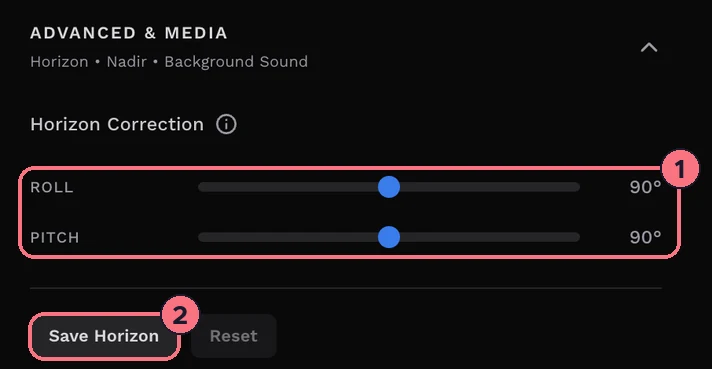
Changed your mind before saving? Reset puts the sliders back to the last saved values.
Tips
- Look around the whole panorama before you save. A tilt can look fine on one side and off on the other; adjust both sliders until every side is upright.
- Start small. A few degrees is often enough; large changes bend the room in other ways.
- Avoid it next time: a spirit level on the tripod, or a camera with built-in levelling, keeps the horizon straight when you shoot.
Common questions
Does horizon correction change my original photo?
No. TeliportMe saves the Roll and Pitch values with the panorama and the tour applies them; your image file isn’t changed.
Is the correction shared when I use a panorama in several tours?
Yes. Horizon correction is saved on the panorama, so straightening it in one tour straightens it in every tour that uses it. See Use the same panorama in several tours.
Can I undo horizon correction after saving?
Yes. Move both sliders back to 90°, which is no correction, and choose Save Horizon. Before you save, Reset puts the sliders back to the last saved values.