
People other than you can open the link or the embed only if the tour is Unlisted or Public. A Private tour shows them a “private” message instead; see Who can see your tour.
Get a link or embed code
Open your tour in the editor and choose Share, the last of the four tabs at the top right (after Hotspot, Panorama and Tour). A preview of the tour fills the left of the screen, and the share settings open on the right:
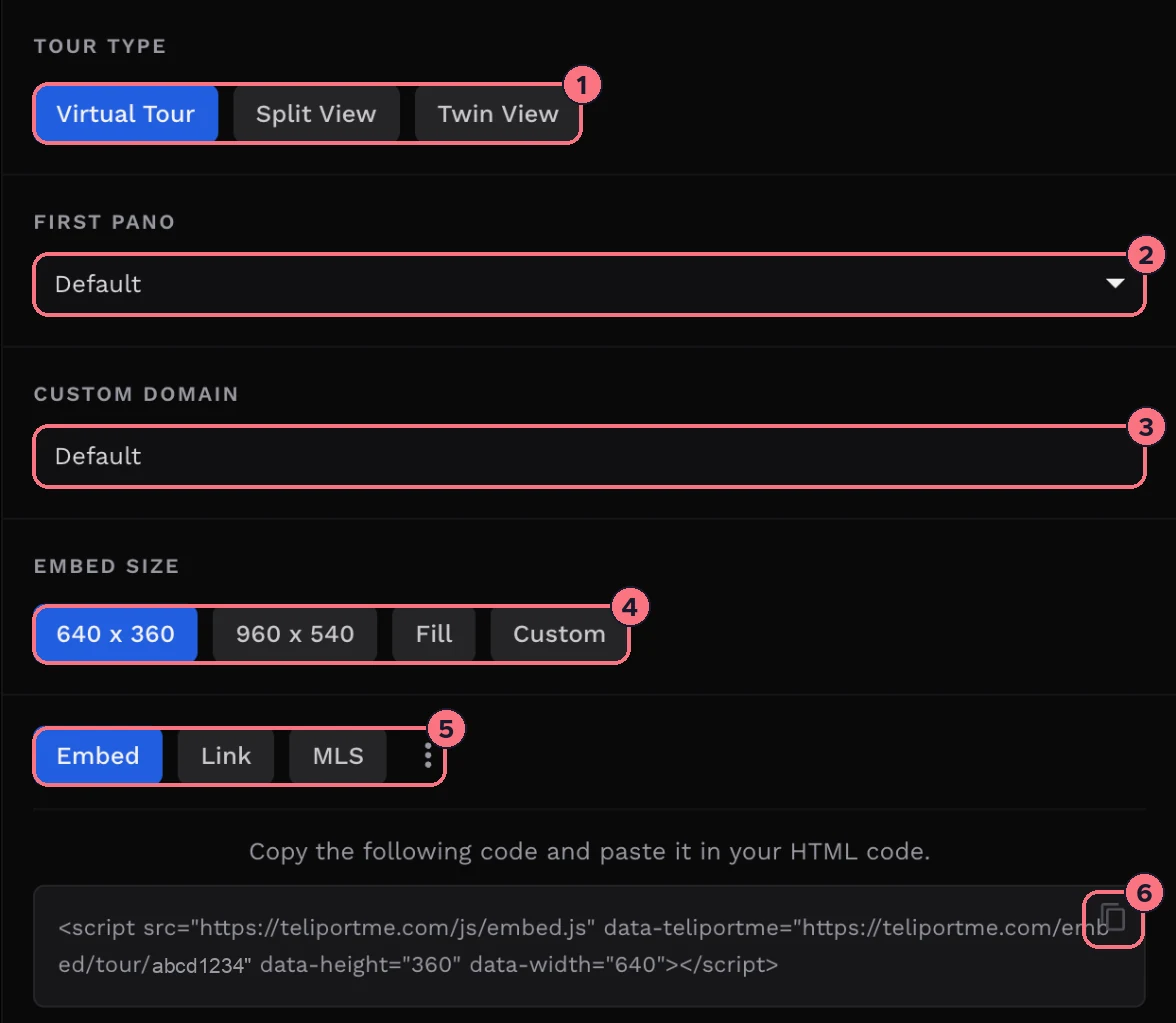
- Tour Type: leave it on Virtual Tour for the normal tour. Split View and Twin View show two panoramas side by side (see Side-by-side view).
- First Pano: Default opens the tour on its first panorama. Pick another one to start visitors in a particular room (see below). This only shows for Virtual Tour.
- Custom Domain: Default uses teliportme.com. If you’ve set up your own domain, pick it here and the link and code use it instead (see Custom domain).
- Embed Size: the size of the tour on your web page. 640 x 360 is the default, and 960 x 540 is a larger version. Fill makes it 100% of the space you put it in, and Custom adds Width and Height boxes: type a number of pixels, or a percentage such as 80%. On a narrow screen, Embed shrinks to fit; Embed iFrame keeps the width you chose, so use Fill or a width of 100% for phones (see Embed a tour on your website). This only changes the embed code, not the link.
- Choose what to copy:
- Embed: a line of code to paste into your website’s HTML.
- Link: the tour’s web address, to send by email or message, or post on social media.
- MLS: a link for property listing sites (see How to add virtual tours to MLS). Every paid plan and the free trial include it.
- Choose the copy icon at the top right of the box. A message confirms it’s copied, for example “Share link copied to clipboard.”
These choices only build the code you copy. They don’t change the tour itself and aren’t saved, so you can make as many versions as you need, such as one link per room.
Embed with an iframe, or get a QR code
The ⋮ button next to MLS has two more options:
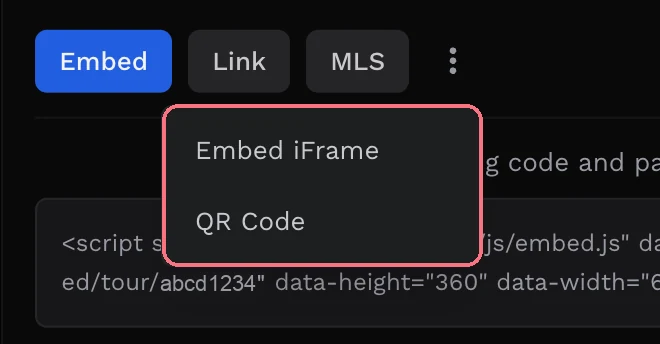
- Embed iFrame: the same tour as an
<iframe>tag. Use it if your website builder only accepts iframes, not scripts. It uses the same Embed Size. - QR Code: a QR code for the tour’s link, including the Tour Type and First Pano you chose. Download QR saves it as an image for flyers, signs and brochures (see How to generate a QR code).
Start on a specific panorama
By default a tour opens on its first panorama. To send people straight to the kitchen, or embed the pool on a page about the pool, start the tour somewhere else. Visitors still get the whole tour and can move on from there.
From the Share tab: pick the panorama under First Pano, then copy the Embed, Link, MLS link or QR code as usual. Everything you copy starts on that panorama.
From the panorama itself:
- Open the panorama in the editor, go to the Panorama tab and expand Panorama Details.
- Choose Share, next to Swap Pano.
- The Share Panorama window has a Direct Link, an Embed Code and an Embed URL. Choose Copy next to the one you need.

This window always uses teliportme.com, and its embed code is 100% wide and 400 pixels high. For your own domain or another size, use First Pano on the Share tab instead.
In the link, the number after the tour’s ID is the panorama, as in /virtualtour/abcd1234/3 for the third one. If the number doesn’t match a panorama, the tour opens on its first.
Share from the Tours page
You don’t have to open the editor. On the dashboard’s Tours page, choose Share on a tour, or Share in its ⋮ menu, and the same share settings open in a window. On a phone you get a simpler version, with the Custom Domain, a Direct Link you tap to copy, and the Embed Code.
Tips
- Embed in a full-width section? Choose Fill, then give the section on your page a height. A tour at 100% height inside a box with no height of its own may not show.
- Check the link before you send it by opening it in a private browser window, where you’re not signed in.
Common questions
How do I embed a virtual tour on my website?
Choose Embed on the Share tab, copy the code and paste it into your website’s HTML, for example in a custom-code block. If your website builder only accepts iframes, use Embed iFrame from the ⋮ menu instead.
Why doesn’t my embedded tour show on my website?
Check the tour is Unlisted or Public, as a Private tour shows visitors a “private” message instead. If you chose Fill, give the section on your page a height: a tour at 100% height inside a box with no height of its own may not show.
Can I share a tour that opens in a particular room?
Yes. Pick the panorama under First Pano before you copy the link, embed code, MLS link or QR code. Visitors start there and can still move around the whole tour.
Can I share a tour on my own domain?
Yes, once you’ve set up a custom domain. Pick it under Custom Domain, and the link and embed code use it instead of teliportme.com.