
Built-in analytics
- Open Settings from your name at the bottom of the dashboard’s left menu, and go to the Analytics tab.
- Under GDPR Compliant Analytics, choose Enable Analytics. Once it’s on, the button becomes View Analytics (1).
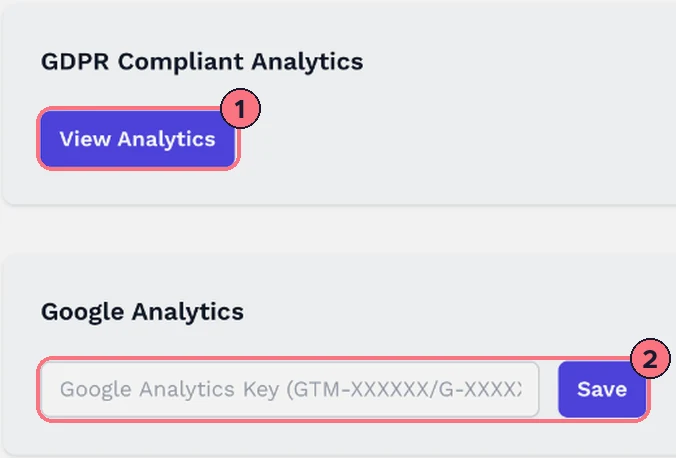
After that, Analytics in the dashboard’s left menu opens the report straight away. It covers all your tours:
- TotalsVisitors, pageviews, sessions, visit duration and bounce rate, with a chart over time. Change the dates at the top right.
- Where they come fromChannels and sources, such as direct visits or links from other sites, plus UTM campaign tags.
- PagesYour most-viewed tours, and the ones visitors arrive on and leave from.
- DevicesPhone, tablet or computer, plus browser, operating system and screen size.
- LocationsCountries, regions and cities, or a map.
Built-in analytics comes with the Business and Unlimited plans, and with the free trial. If the tab says This feature is not available for your account, email help@teliportme.com.
Google Analytics for all your tours
- In Settings > Analytics, find Google Analytics (2).
- Paste your Google Analytics 4 measurement ID, which starts with G-, and choose Save.
Each visit to any of your tours is then sent to your Google Analytics property as a page view.
Google Analytics for one tour
To send one tour’s visits to a different property, such as a client’s:
- In the editor, open the Tour tab and expand Tour Settings.
- Paste the measurement ID into Google Analytics (3), then press Enter or choose the green tick. Clicking away without doing that discards it.

A tour with its own ID uses that instead of the one in Settings.
Tips
- MLS links aren’t counted. Visits through a tour’s unbranded MLS link don’t appear in either kind of analytics.
- Analytics counts visits to the tour itself, not clicks on individual hotspots.
Common questions
Can I see how many people viewed my virtual tour?
Yes. TeliportMe’s built-in analytics shows visitors, pageviews and visit duration across your tours, and its Pages section lists your most-viewed tours. It comes with the Business and Unlimited plans and the free trial.
Can I use Google Analytics 4 with my virtual tours?
Yes. Paste your measurement ID, which starts with G-, into Settings > Analytics for all your tours, or into one tour’s Tour Settings to send that tour’s visits to a different property.
Does analytics track hotspot clicks?
No. Both the built-in analytics and Google Analytics count visits to the tour itself, not clicks on individual hotspots.